
Apple just flipped the switch on tvOS 26.2, and the TV app experience is getting a family-first rewrite. The update lands today for Apple TV, and it finally delivers what many homes needed, robust multi user profiles and a true Kids Mode. This is not a coat of paint. It changes how your living room works.
What Apple just shipped
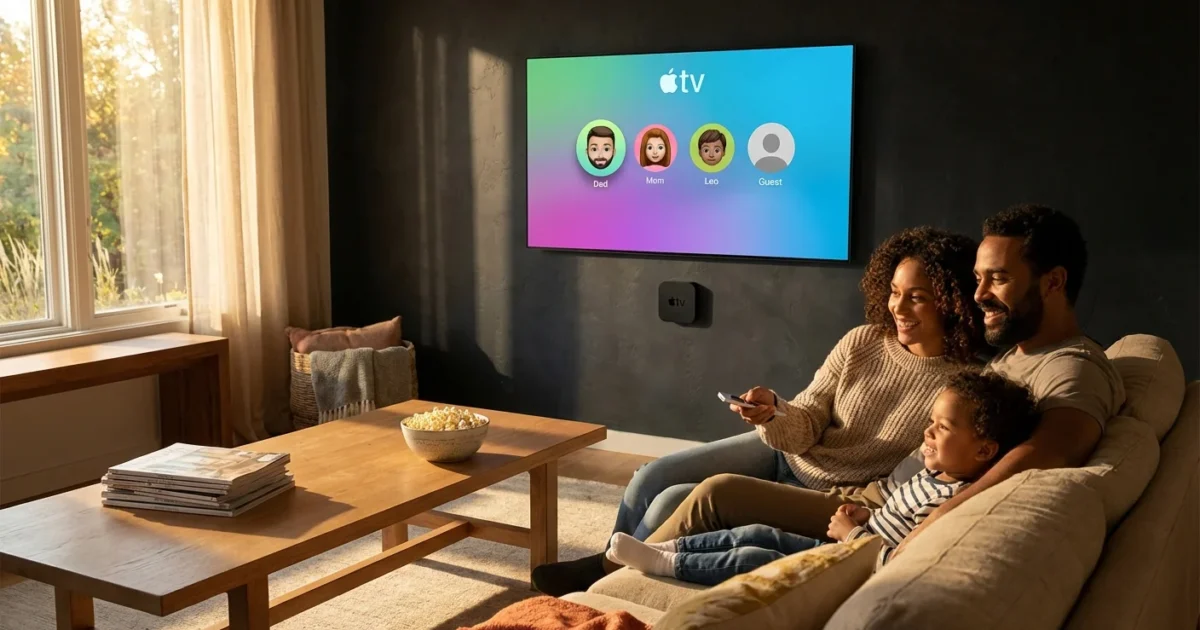
tvOS 26.2 brings expanded TV profiles across the system and the TV app. You can set up different profiles for everyone at home. Each person gets their own Up Next row, watch history, and recommendations. The TV app no longer blends Dad’s dramas with a teen’s anime. It learns each viewer, then stays in its lane.
Switching profiles is fast. Open Control Center from the Siri Remote, choose your face, and Apple TV reloads the TV app and system view for that person. The Home screen, the TV app, and Apple services respect the active profile. That means fewer fights over what is suggested, and fewer spoilers on the big screen.
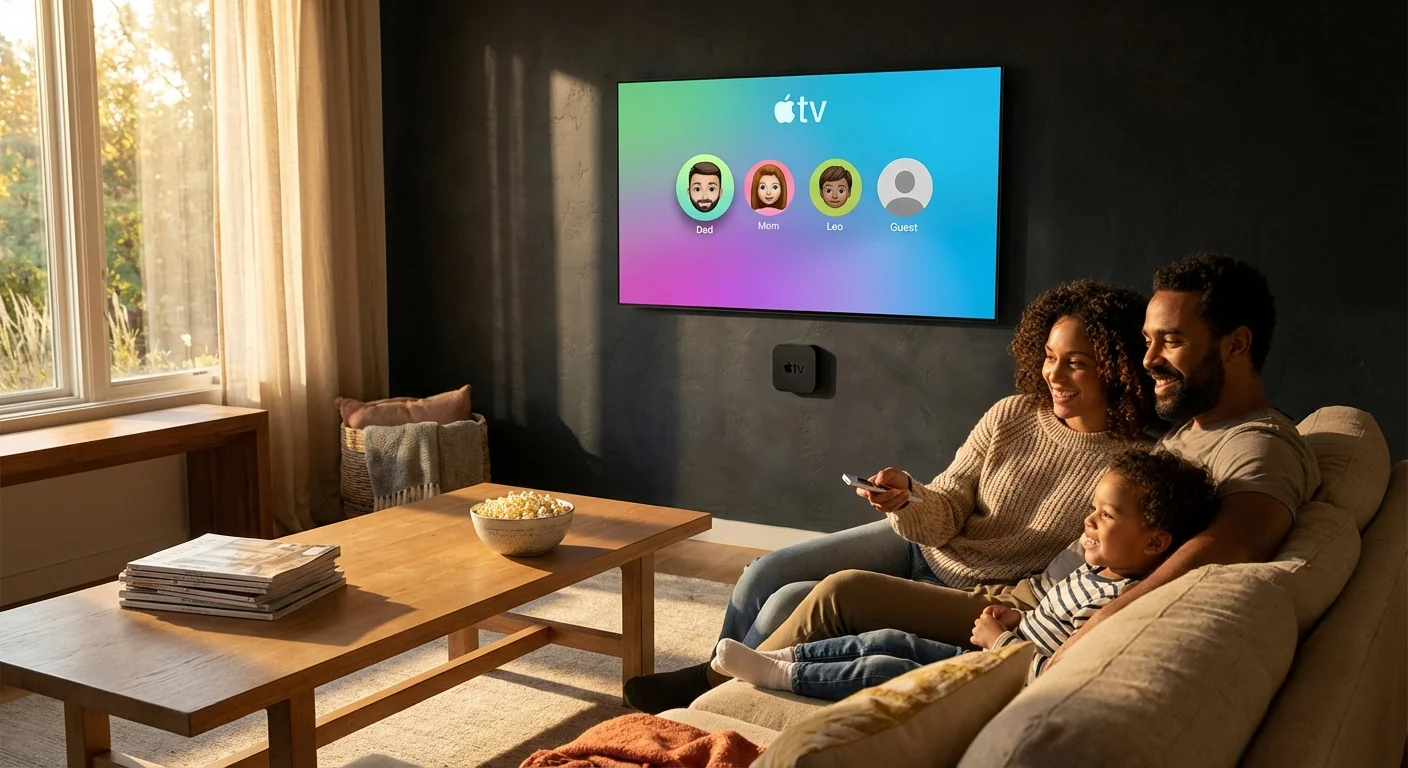
Turn on profile suggestions in Settings to improve recommendations for each user. It keeps Up Next cleaner for everyone. 🎯
Profiles get real depth
Profiles now feel complete. Each user can set their own language options and subtitle styles. The TV app tracks progress by person, so a half watched show picks up exactly where you left it, not where someone else left it. Shared device, personal experience.
If you use Apple TV+, Apple Music, or Apple Arcade, your services tie to your profile. That keeps purchases and preferences separated. It also makes the TV app’s Channels and live sports alerts more relevant. You should see fewer oddball picks, and more of what you actually watch.
Kids Mode, finally built in
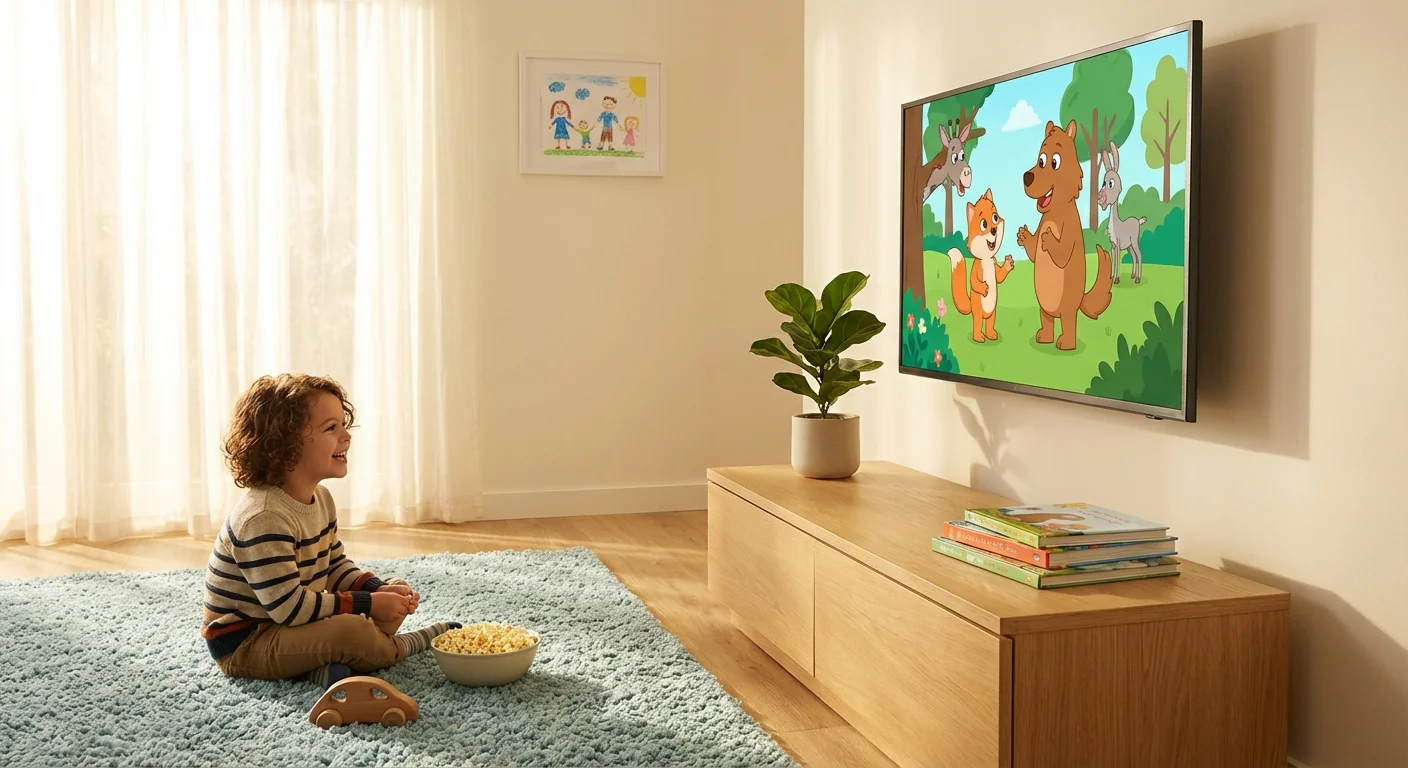
Kids Mode is now a top level feature, and it is simple. You choose a child profile, set the age range, and the TV app shows only age appropriate content. Mature titles are hidden. Recommendations, search, and Up Next all filter for kids. Parents can also block apps and lock purchases on that child view.
It is safe by design. Kids Mode sits behind a PIN. Exiting it requires that code. If you walk out for snacks, the TV stays in a kid friendly lane. That means no surprise previews, no adult rows, and less stress.
Do not reuse your device passcode as the Kids Mode PIN. Keep them different to avoid accidental unlocks.
How to turn it on
- Update your Apple TV. Go to Settings, System, Software Updates, then select Update Software.
- Add profiles. Open Settings, Users and Accounts, then choose Add New User for each person.
- Set up Kids Mode. In Settings, open Users and Accounts, choose the child profile, then configure Kids Mode.
- Tune controls. Pick content ratings, allowed apps, and purchase rules for that child profile.
- Switch users on the fly. Open Control Center on the remote, then choose the active profile before you watch.
How it stacks up
Apple now meets, and in parts beats, rivals on the family front.
- Roku has a Kids and Family section, but it does not go as deep on profiles.
- Fire TV offers Kids profiles and content filters, but switching can feel clunky.
- Google TV has Kids profiles with bedtimes and themes, and Apple now matches the core controls.
The difference is integration. On Apple TV, profiles flow through the TV app, the Home screen, and Apple services. That tight link cuts down on cross contamination between users. It feels coherent, not bolted on.
Why this matters
This update turns Apple TV into a real shared device that still feels personal. Parents get stronger guardrails without wrestling hidden menus. Kids get their own safe space. Teens keep their shows separate. Everyone wins.
For Apple, this is a trust play. A better TV app with smart profiles makes you more likely to stay inside Apple’s ecosystem. It also gives developers a clear signal. Respect the active profile, honor Kids Mode, and keep recommendations scoped. Expect top apps to tune their behavior for this system level change.